Best Productivity Apps for Remote Workers (2026 Guide)
The ultimate challenge of working remotely is that you are completely in charge of your own environment. Without the physical boundaries of an office, you have to build your own structure, protect your attention from constant digital pings, and keep yourself aligned with a team you cannot see.
Many professionals try to solve these problems by downloading every popular software tool available. However, this often leads to “app sprawl”—a chaotic setup where tasks get lost across endless chat threads, open tabs, and conflicting notifications.
To help you build a clean, efficient digital workspace, we have grouped the top remote productivity applications into four operational categories. Here is a look at how these tools perform, what they cost, and their true limitations.
The Remote Work Productivity Stack Matrix
A balanced remote workflow requires separate, dedicated platforms for communication, task tracking, time allocation, and focus protection.
| App Category | Primary Recommendations | Best For | Core Operational Benefit |
| Project & Task Tracking | Asana, ClickUp, Notion | Eliminating task ambiguity | Visualizes workflows and ownership |
| Asynchronous Communication | Loom, Slack | Reducing live meeting fatigue | Shifts conversations out of real-time |
| Smart Scheduling & Tracking | Reclaim.ai, Toggl Track | Protecting deep work time | Automates time blocks and logs hours |
| Environmental Focus | Freedom.to | Insulating working memory | Blocks cross-device digital noise |
1. Project & Task Tracking Applications
Distributed teams fail when they rely on memory, text chains, or email to track deliverables. These platforms provide a centralized “source of truth” for your work.
Asana: Best for Workflow Clarity
Asana organizes complex, multi-step projects into highly visible timelines, lists, and Kanban boards. It is built specifically to establish clear ownership for every assignment.
-
The Upside: Exceptionally clean user interface with zero training required for basic features. It integrates seamlessly with team messaging apps and cloud storage.
-
The Downside: Advanced reporting tools, custom fields, and complex dependency structures are locked behind premium pricing tiers, which can get expensive for growing teams.
ClickUp: Best for Tool Consolidation
ClickUp positions itself as an all-in-one workspace, bundling task lists, internal documents, goal tracking, and built-in time sheets into a single app.
-
The Upside: Incredibly feature-dense. If you want to stop paying for separate documentation and time-tracking subscriptions, ClickUp can save you a lot of money.
-
The Downside: The learning curve is steep. Because it offers so many customization options, the interface can feel cluttered and overwhelming for beginners.
2. Asynchronous Communication Tools
Constant real-time interruptions are the biggest drain on remote focus. These tools help your team collaborate without demanding an immediate response every minute.
Loom: Best for Screen Walkthroughs
Loom allows you to quickly record your screen, camera, and voice simultaneously to send a video link instead of scheduling a live video call.
┌────────────────────────────────────────────────────────────────────────┐
│                        LOOM MEETING ELIMINATION                        │
└────────────────────────────────────────────────────────────────────────┘
  [Complex Issue] ──► [Write 1,000-word Email] ──► (Confusing/Time Drain)
  [Complex Issue] ──► [Schedule 30-min Zoom]   ──► (Calendar Fragmentation)
  [Complex Issue] ──► [Record 3-min Loom Video] ──► (Clear, Async Solution)
-
The Upside: Dramatically cuts down on unnecessary meetings. Teammates can watch your video at double speed, view auto-generated AI summaries, and leave comments at specific timestamps.
-
The Downside: It does not replace the need for real-time connection during complex strategy sessions or sensitive discussions.
3. Time Allocation & Smart Scheduling
When you work independently, managing your calendar is just as important as managing your tasks. These tools help automate that process.
Reclaim.ai: Best for Calendar Protection
Reclaim is an intelligent calendar assistant that syncs with your task list and automatically schedules flexible time blocks for deep work and habits directly onto your calendar.
-
The Upside: It dynamically adjusts your day. If an urgent team meeting gets booked over a focus block, Reclaim automatically moves your focus time to the next available opening in your schedule.
-
The Downside: It requires you to be disciplined about using your digital calendar as your absolute guide for the day.
Toggl Track: Best for Independent Analytics
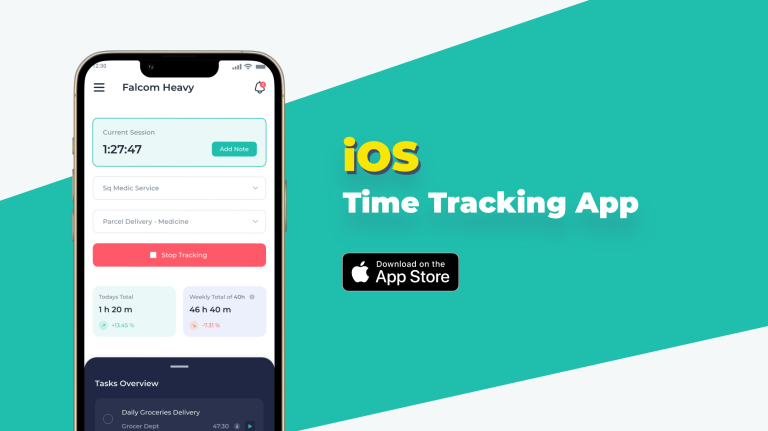
Toggl is a clean, simple time tracker that runs quietly in the background on your computer or browser.
-
The Upside: Excellent data visualizations that show exactly how many hours you spent on specific apps, clients, or projects. It is highly useful for freelancers who need to invoice accurately.
-
The Downside: The software only provides value if you consistently remember to start, stop, and categorize your active timers.
4. Environmental Focus and Distraction Blockers
Freedom.to: Best for Strict Distraction Control
Freedom is a powerful application and website blocker designed to temporarily cut off your access to digital temptations.
-
The Upside: It syncs across all your devices simultaneously. If you start a focus session on your computer, Freedom will automatically block distracting apps on your phone and tablet at the same time. It also features a “Locked Mode” to prevent you from ending a session early out of habit.
-
The Downside: It acts as a strict tool; it will completely cut you off from blocked sites, meaning you must plan your focus windows carefully.
How to Build Your Toolkit Without App Overload
When designing your remote work setup, avoid the temptation to download all of these tools at once. Start by picking just one app to solve your biggest daily problem. If your calendar is packed with status meetings that could easily be updates, introduce Loom. If you find yourself mindlessly browsing social media during deep work sessions, deploy Freedom.
By building your stack slowly and making sure each new tool serves a clear purpose, you will create a quiet, highly productive digital workspace that helps you stay focused and organized.
External Source Suggestions
-
Asana Resource and Architecture Logs:
[asana.com/resources](https://asana.com/resources)(To verify tool capabilities and current workflow layouts). -
Toggl Track Feature Documentation:
support.toggl.com(To verify exact cross-platform tracking capabilities). -
Freedom.to Technical Support Portal:
freedom.to/help(To confirm locked-mode behavior and cross-device syncing operations).