Best Digital Planner Apps for Professionals
The act of daily planning is inherently personal, yet many professionals struggle because they force their day into a software interface that clashes with how they naturally think. If your planning tool feels like an administrative chore you are constantly fighting to maintain, your system is bound to fail.
The market for professional planning tools is split by a major architectural divide. On one side are handwriting-first digital planners designed to mimic the fluid, spatial layout of traditional paper. On the other side are algorithmic calendar-first apps that use automation to block out your time.
Choosing the right application requires looking past marketing feature lists and identifying whether you plan better with a stylus, a structured list, or an automated schedule. Here is a practical, objective breakdown of the best digital planner apps for professionals.
The Digital Planner Matrix: Categorized by Workflow Style
A balanced professional routine depends on picking the software archetype that matches your daily workload.
| App Archetype | Primary Recommendations | Best For | Platform Ecosystem | Key Advantage |
| Handwriting & PDF-First | GoodNotes 6, OneNote | Spatial thinkers who prefer a stylus | iOS, Android, Windows | Maintains the cognitive feel of paper |
| Algorithmic & Time-Blocking | Lifestack, Motion | High-volume, fast-changing schedules | Cross-platform, Mobile | Automates daily rescheduling |
| Consolidated Note & Task | NotePlan, Notion | Project-heavy knowledge workers | Apple-centric / Cross-platform | Merges daily logs directly with calendars |
1. Handwriting & PDF-First Planners (The Spatial Track)
These platforms are built for professionals who want the tactical, creative freedom of a paper notebook combined with the backup safety, searchability, and convenience of a digital device.
GoodNotes 6: Best for Natural Stylus Precision
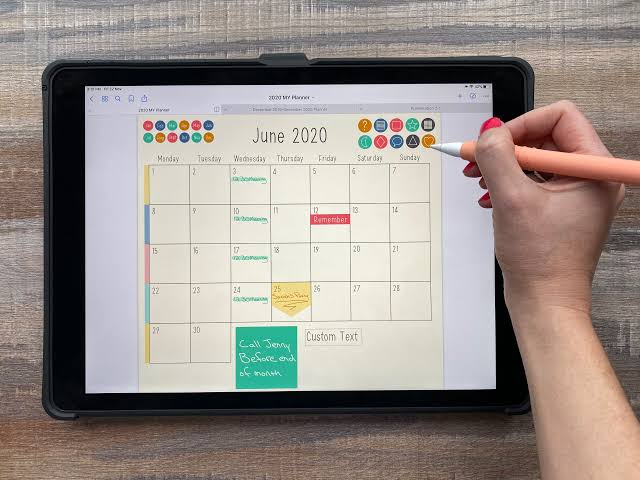
GoodNotes functions as a high-fidelity digital binder. Professionals use it by importing hyperlinked PDF planning templates, allowing them to jump between annual overviews, weekly spreads, and daily log pages with a tap of a stylus.
-
The Pros: Industry-leading handwriting recognition engine. You can search for a handwritten keyword across thousands of archived planning pages and find it instantly.
-
The Cons: It features zero native interactive task management. It cannot trigger notifications, sync with your Google or Outlook calendar servers natively, or move uncompleted tasks to the next day automatically.
-
Best For: iPad or tablet power-users who think best by writing by hand and do not require strict external app integrations.
Microsoft OneNote: Best for Cross-Platform Corporate Scaling
OneNote operates as an infinite digital canvas, dividing information into clean notebooks, sections, and pages.
-
The Pros: Outstanding corporate cross-platform support across Windows, Mac, iOS, and Android. It integrates perfectly with the Microsoft Office ecosystem, allowing you to link your handwritten notes directly with Outlook tasks.
-
The Cons: The completely open canvas structure can feel unguided. Without purchasing a pre-made professional planner layout template, building a clean layout from scratch takes significant time.
2. Algorithmic & Time-Blocking Planners (The Automated Track)
If your work day is routinely derailed by unexpected client requests, team meetings, and changing priorities, manual planners often collapse because you don’t have time to constantly update them. Automated planners use smart scheduling to keep your day organized.
Lifestack: Best for Energy-Aware Scheduling
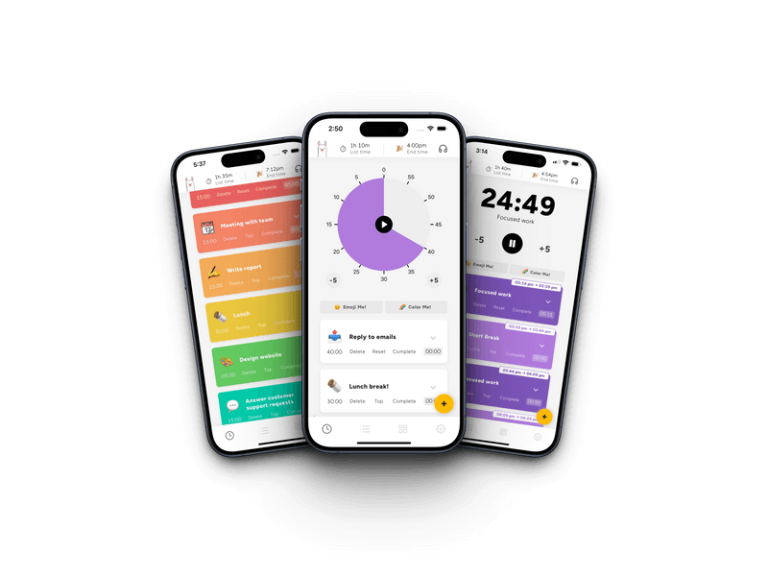
Lifestack is a smart digital planner that syncs your tasks and calendars directly with your physical sleep and biometric recovery metrics.
┌────────────────────────────────────────────────────────────────────────┐
│                        LIFESTACK BIOMETRIC RESCHEDULING                │
└────────────────────────────────────────────────────────────────────────┘
  [Biometric Input] ──► Analyzes sleep & recovery data

  [High Cognitive Capacity Window] ──► Automatically schedules deep work tasks

  [Afternoon Cortisol Dip Slump]    ──► Shifts admin, emails, & low-stakes calls
-
The Pros: It takes the guesswork out of daily scheduling by matching your most demanding cognitive projects to the hours your body is most ready to handle them. When a meeting runs over, the calendar automatically reschedules the rest of your day.
-
The Cons: There is no permanent free tier available, and the app does not feature any handwriting or stylus template support.
-
Best For: Knowledge workers, remote professionals, and deep-focus specialists looking to automate their daily routines.
3. Consolidated Note & Task Planners (The Integrated Track)
NotePlan: Best for Calendar-Linked Daily Logging
NotePlan combines the simplicity of bullet journaling with the power of a digital system, linking markdown text notes directly to calendar dates.
-
The Pros: Every single day gets a clean text page placed right next to your active Apple or Google Calendar feed. Any task you type out using bullet points instantly surfaces on your time-blocking calendar, giving you a unified view of your day.
-
The Cons: It is tailored heavily toward the Apple hardware ecosystem (Mac, iPad, iPhone), which limits its utility for professionals running Windows desktop environments.
How to Avoid the Template Setup Trap
The single most common mistake professionals make when moving to a digital planner is downloading dozens of complex layout options, habit trackers, and goal sheets all at once. This often creates an overwhelming wall of empty fields that drains your time before you even start working.
To build a reliable system, focus entirely on your primary workflow style. If you focus best by drawing layout outlines and writing long-form meeting logs, adopt GoodNotes or OneNote. If you are drowning in constant calendar changes and need the software to dynamically structure your day, step away from manual logs and implement an automated solution like Lifestack. Start with a basic setup, use it consistently for three weeks, and adjust the structure only when your workflow genuinely demands it.
External Source Suggestions
-
Microsoft OneNote Enterprise Resource Center:
[support.microsoft.com/onenote](https://support.microsoft.com/onenote)(To verify cross-platform enterprise synchronization layers and Outlook task setups). -
GoodNotes 6 Technical Release Documentation:
support.goodnotes.com(To confirm current handwriting indexing metrics, AI note updates, and search parameters). -
Lifestack Dynamic Engine Specifications:
lifestack.ai/features(To cross-verify health device integration methods and automated rescheduling rules).